
How to Connect Your Phone to Ford SYNC
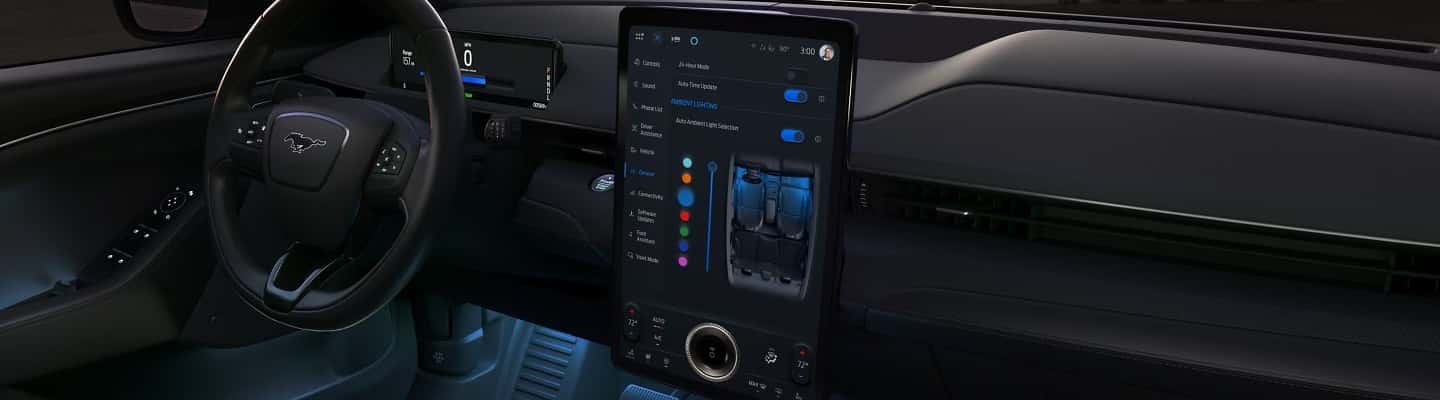
How to Connect Your Phone to Ford SYNC in 2026
If you are new to Ford or just bought a vehicle with SYNC or SYNC 3, connecting your phone might seem a little intimidating at first. But once you know where to look, pairing your phone is quick, easy, and does not require extra apps or advanced tech knowledge.
Whether you are making hands-free calls, sending texts, or playing music, the Ford SYNC system helps keep your eyes on the road and your hands on the wheel. This guide walks you through exactly how to connect your phone to Ford SYNC, step by step, and includes a few helpful tips in case something does not go as planned.
Quick Answer
To connect your phone to Ford SYNC, turn on Bluetooth on your phone, open the SYNC phone menu, select Add a Device, choose SYNC from your phone’s Bluetooth list, confirm the PIN matches, and approve contact access. Once paired, you can use hands-free calling, music streaming, and other connected features.
What Is Ford SYNC?
Ford SYNC is a built-in system that connects your smartphone to your vehicle through Bluetooth. Depending on the model year and system version, such as SYNC or SYNC 3, features may vary a little, but the basics stay the same.
What Ford SYNC Can Do
- Hands-free calling and texting
- Music streaming through your apps or saved library
- Voice command access to contacts, playlists, and directions
- Automatic phonebook downloading
- Apple CarPlay® and Android Auto™ support on many models
If your Ford Escape or another Ford model includes a touchscreen and Bluetooth settings, you likely have a version of SYNC. Once your phone is connected, the system becomes much easier to use day to day.
Step-by-Step: Ford SYNC Phone Pairing
Before you start, make sure Bluetooth is turned on in your phone’s settings. Both Android phones and iPhones work with Ford SYNC.
Step 1
Turn on your vehicle and let the SYNC screen fully load.
Step 2
On your phone, go to Settings > Bluetooth and leave that screen open.
Step 3
On your SYNC system, press the Phone button or tap Add a Device on the touchscreen.
Step 4
When SYNC appears in your phone’s Bluetooth list, tap SYNC.
Step 5
Check that the 6-digit PIN on your phone matches the one on the SYNC screen, then press Pair and Yes.
Step 6
Allow SYNC to download your contacts and set the device as your primary phone if prompted.
That is it. Your phone is now connected, and your Ford is ready for calls, messages, and media.
Tip: If you are using SYNC 3 or newer, your screen may also prompt you to enable Apple CarPlay® or Android Auto™ if those features are available.
What to Do If Your Phone Is Not Connecting
Sometimes Bluetooth does not cooperate right away. If SYNC does not show up on your phone, or your phone does not stay connected, try these common fixes.
- Restart both your phone and your vehicle. A fresh start often clears up temporary Bluetooth issues.
- Delete old Bluetooth pairings. Too many saved devices can sometimes confuse the system.
- Make sure your phone is discoverable. On iPhones, keep the Bluetooth screen open. On many Android devices, visibility settings matter too.
- Check for SYNC software updates. Visit Ford’s official SYNC update page and enter your VIN to see whether your vehicle is due for an update.
Using Voice Commands with Ford SYNC
Once your phone is paired, Ford SYNC does more than connect. It also lets you control key functions without taking your hands off the wheel. Try pressing the voice button and saying commands like these.
“Call [contact name]”
“Play [song, artist, or album]”
“Text [contact name]”
“Find an address” or “Find coffee near me”
If you are not sure what to say, press the voice button and say Help. Ford SYNC will walk you through your options.
Voice commands are especially helpful when driving because they keep you connected while reducing distractions.
Apple CarPlay and Android Auto
If your Ford supports Apple CarPlay® or Android Auto™, these systems bring a more familiar phone-style interface to your SYNC screen. Many newer Ford vehicles include one or both.
What You Can Access
- Maps and GPS directions
- Phone calls and text messages
- Music apps like Spotify or Apple Music
- Podcasts and audiobooks
How to Use Apple CarPlay or Android Auto
- Plug your phone into the USB port using a good-quality charging cable.
- Accept the prompts that appear on both your phone and the SYNC screen.
- After setup, CarPlay or Android Auto will usually launch automatically in the future.
These systems do not replace Bluetooth, but they can make navigation, streaming, and communication even easier to use.
Final Thoughts: Make Your Drive Easier with Ford SYNC
Learning how to connect your phone to Ford SYNC does not have to be complicated. Once it is set up, you can enjoy hands-free communication, easier media controls, and quick access to your most-used phone features whether you are running errands, heading out on a road trip, or staying in touch with family.
If you ever run into trouble or want a personalized walk-through, do not hesitate to reach out to Biener Ford. Our team is here to help you get the most from your Ford SYNC system.
Need Help with Ford SYNC?
If you are having trouble pairing your phone, updating SYNC, or getting Apple CarPlay or Android Auto to work, the team at Biener Ford is here to help.
Your Ford is built to make daily driving easier, and connecting your phone is a great place to start.

0 comment(s) so far on How to Connect Your Phone to Ford SYNC